مادة تدريبية: تجهيز بيانات من خرائط ورقية
9. رقمنة طبقات البيانات الإتجاهيت من خلفية مرجعة جغرافياً
9.1. رقمنة القمم
يتعين علينا أولاً إنشاء طبقة GeoPackage فارغة.
1. من القائمة الرئيسية، اختر طبقة (Layer) | إنشاء طبقة (Create Layer) | طبقة GeoPackage جديدة (New GeoPackage Layer).
2. في نافذة حوار "طبقة GeoPackage جديدة"، اختر أولاً اسم ملف قاعدة البيانات بالنقر فوق  . استعرض المجلد الذي تريد تخزين ملف GeoPackage فيه واحفظه باسم
 Mount_Marcy.gpkg. لاسم الجدول (Table name)، اختر Peaks. لنوع الهندسة (Geometry type)، اختر نقطة (Point). تأكد من اختيار EPSG:26718 كإسقاط للخرائط (Projection). أنشئ حقلاً جديداً باسم Elevation، ونوع Whole Number (integer) ثم انقر  .
.
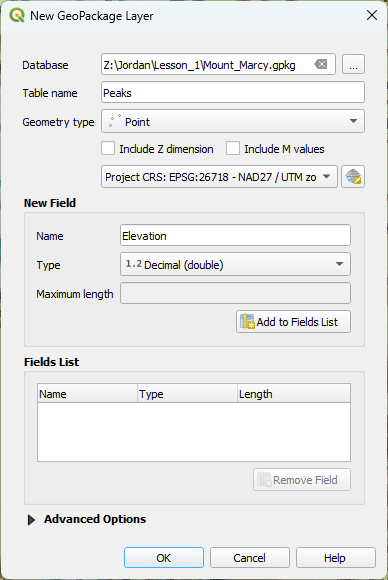
3. أضف حقلاً جديداً ثانياً بنوع Text واسمه Name. تأكد من النقر فوق زر الإضافة إلى قائمة الحقول (Add to Fields List)، ثم انقر فوق موافق (OK).
تمت الآن إضافة الطبقة الفارغة إلى قائمة الطبقات الخاصة بك :
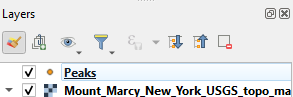
لبدء عملية الترقيم (digitizing)، يجب عليك تفعيل وضع التحرير.
4. انقر فوق طبقة Peaks ليتم تحديدها. انقر فوق أيقونة  في شريط الأدوات للانتقال إلى وضع التحرير. يمكنك أيضاً النقر بزر الفأرة الأيمن على الطبقة واختيار تبديل التحرير (Toggle Editing) من القائمة السياقية لوضع الطبقة في حالة التحرير.
ستصبح الآن الأزرار الموجودة في شريط أدوات الترقيم نشطة. تظهر أيضاً أيقونة قلم رصاص بجوار الطبقة في لوحة الطبقات، مما يشير إلى أن الطبقة في وضع التحرير.
5. في الخريطة الطبوغرافية، انتقل إلى أحد الجبال. إذا كان هناك مرجع جيوديسي (geodetic datum) موجود في القمة، فستجد علامة X وقيمة للارتفاع.
6. عند العثور على واحد، قم بالتكبير وانقر فوق زر إضافة معلم نقطي  . سيتغير المؤشر إلى شكل "متقاطع". حرك المؤشر إلى قمة الجبل، وانقر فوق القمة.
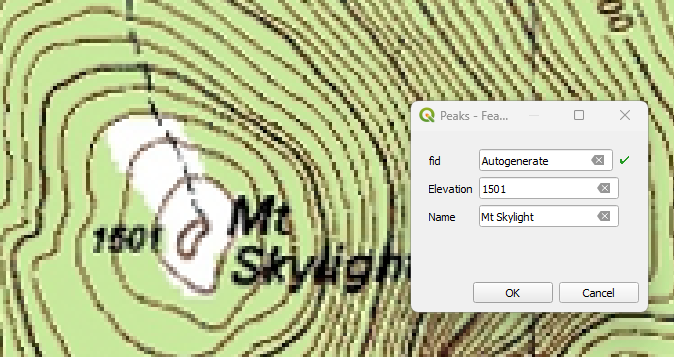
A dialogue with a form shows up, .fid is the feature id that is automatically generated. It’s a unique integer number for each feature. The other attributes that we have to fill in are Elevation and Name.
يظهر مربع حوار به نموذج. fid هو معرف المعلم (feature id) الذي يتم إنشاؤه تلقائياً، وهو رقم صحيح فريد لكل معلم. السمات (Attributes) الأخرى التي يتعين علينا ملؤها هي Elevation و Name.
7. في هذا المثال، نكتب 1501 و Mt Skylight للارتفاع والاسم على التوالي. إذا قمت بترقيم قمة بدون ارتفاع مسجل، فحدد الارتفاع بناءً على خطوط الكنتور.
8. كرر هذه الخطوة لبعض القمم الأخرى
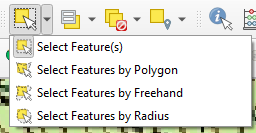
إذا ارتكبت خطأً، يمكنك استخدام أداة القمة  لتحريك المعلم أو استخدام أحد خيارات التحديد لتحديد المعلم النقطي ثم النقر فوق أيقونة
  لحذف المعلم المحدد. يمكن استخدام هذه الأزرار
  للتراجع عن إجراءات التحرير أو إعادتها. استخدم زر الحفظ
  لحفظ التعديلات.
9. عند الانتهاء، انقر مرة أخرى على زر تبديل التحرير لإيقاف وضع التحرير. إذا لم تقم بحفظ التعديلات بعد، فسيطلب منك البرنامج الحفظ (Save) أو التجاهل (Discard). باستخدام "التجاهل"، يمكنك دائماً التراجع عن تعديلاتك حتى آخر مرة تم فيها الحفظ.
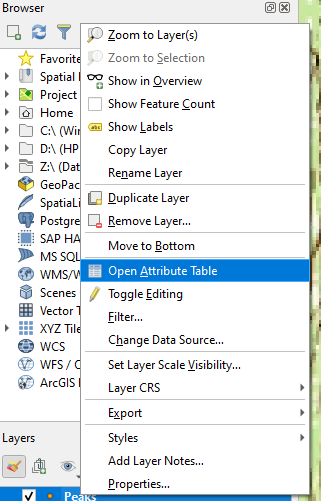
10. يمكنك التحقق من جدول الخصائص (attribute table) لطبقة البيانات الاتجاهية النقطية الجديدة عن طريق النقر بزر الفأرة الأيمن على اسم الطبقة (Peaks) واختيار فتح جدول الخصائص.
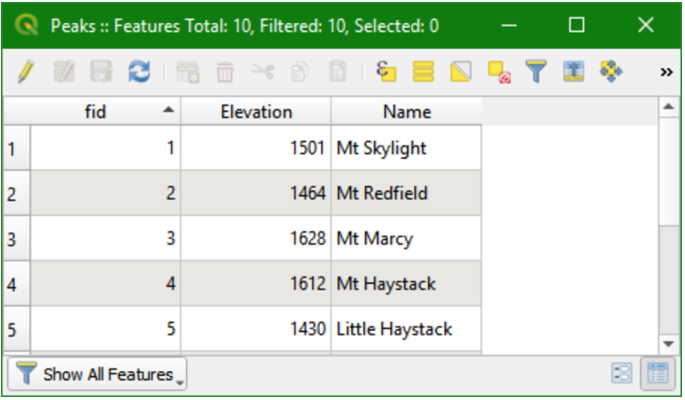
الآن يمكنك رؤية السمات التي أضفتها وقيم fid و Elevation و Name الخاصة بها.
شاهد هذا الفيديو للتحقق من خطوات هذا الفصل: