Tutorial: Remote Sensing Image Classification with QGIS
3. Preparing Ground Truth Data
3.3. Add Labels to Ground Truth Points
Now we have all reference layers in the map canvas, we can improve the visualisation a bit before we can start segmenting parcels.
1. Hide the Gharbia Study Area layer and make sure that the summer_crop_samples layer is on top of the Google Satellite layer.
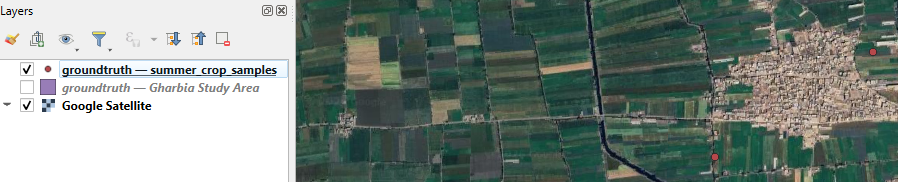
Later we'll use AI-based segmentation to delineate the parcels belonging to the ground truth points. To make it easier we can label the points with the class name.
2. Select the summer_crop_samples layer and click  to open the Layer Styling panel.
The Layer Styling panel appears, but is partly covered by another panel from the QuickMapServices plugin.
3. Close the Search NextGIS QMS panel by clicking the cross in the upper right of the panel.
4. Go to the Labels  tab.
tab.
5 From the drop-down menu choose Single Labels.
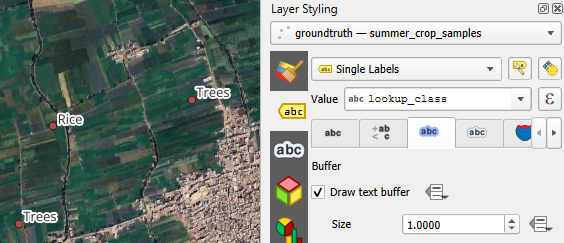
6. At Value choose the Lookup_class field which has the class names.
The names with the black font are not very visible on the satellite backdrop. Let's improve this by adding a text buffer.
7. Go to the Buffer  tab.
tab.
8. Tick the box before Draw text buffer.
9. Save the project to the GeoPackage with the data layers. In the main menu, go to Project | Save To | GeoPackage....
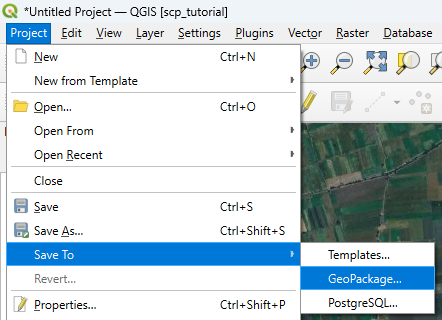
10. Choose the existing GeoPackage and save the project as crop_classification.
Now we're ready to proceed with the AI segmentation.