Tutorial: Introduction to GDAL
9. Convert Comma Separated Values (CSV)
Sometimes you want to reproject coordinates in an ASCII file, e.g. which has been saved to text in a spreadsheet program. Here we will convert the coordinates in a comma separated ASCII file locations.csv to a GeoPaclage point layer with reprojected coordinates.
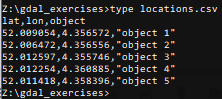
It is good practice to first view the contents of a CSV file and to verify (1) the coordinates, and (2) the column separator. The separator is not always a comma and sometimes depends on the language settings used while exporting from a spreadsheet programme.
1. View the contents of locations.csv . You can use the type command from the command prompt as you learned in the Command Line tutorial.
<OGRVRTDataSource>
   <OGRVRTLayer name="locations">
      <SrcDataSource>locations.csv</SrcDataSource>
      <GeometryType>wkbPoint</GeometryType>
      <LayerSRS>EPSG:4326</LayerSRS>
      <GeometryField encoding="PointFromColumns" x="lon" y="lat"/>
   </OGRVRTLayer>
</OGRVRTDataSource>
3. Save the file as locations.vrt in the same folder as locations.csv.
Some explanation about the XML file:
<OGRVRTLayer
name="locations">
should correspond with the<SrcDataSource>locations.csv</SrcDataSource><LayerSRS>EPSG:4326</LayerSRS>should correspond with the EPSG code of the coordinate columns
<GeometryField
encoding="PointFromColumns" x="lon" y="lat"/>
indicates the columns with the coordinates that you want to convert.
gdal vector reproject -d EPSG:28992 locations.vrt data.gpkg --update --output-layer locations_reprojectedgdal info.