Tutorial: Introduction to GDAL
2. Using the OSGeo4W Shell
In this tutorial we'll use GDAL shipped with QGIS. You can use the GDAL commands through the OSGeo4W shell. The easiest way of opening the shell is through the QGIS Browser panel.
- Start QGIS Desktop
- In the Browser panel, locate the folder where you have saved the data for this tutorial, e.g. Z:\GDAL_tutorial.
- Right-click on the folder name and choose Open in Terminal... from the context menu.
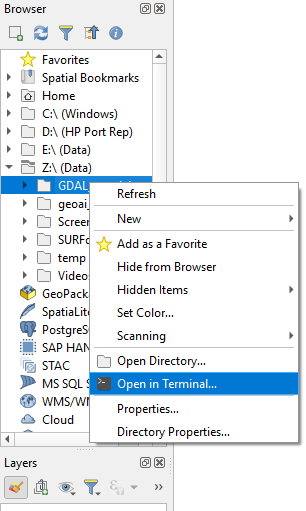
In the OSGeo4W terminal that has opened now you can see at the prompt that you are in the directory of the tutorial data.
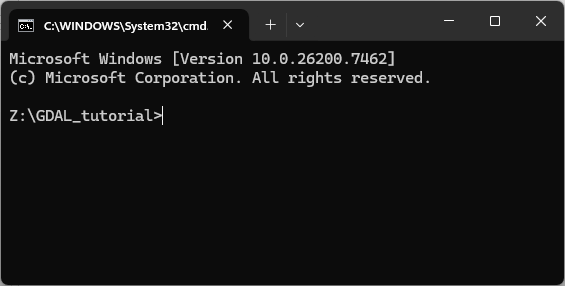
Let's first check if your CLI works with the latest gdal commands.
3. Execute the following command:
gdal
If you see this as the result, all is fine:
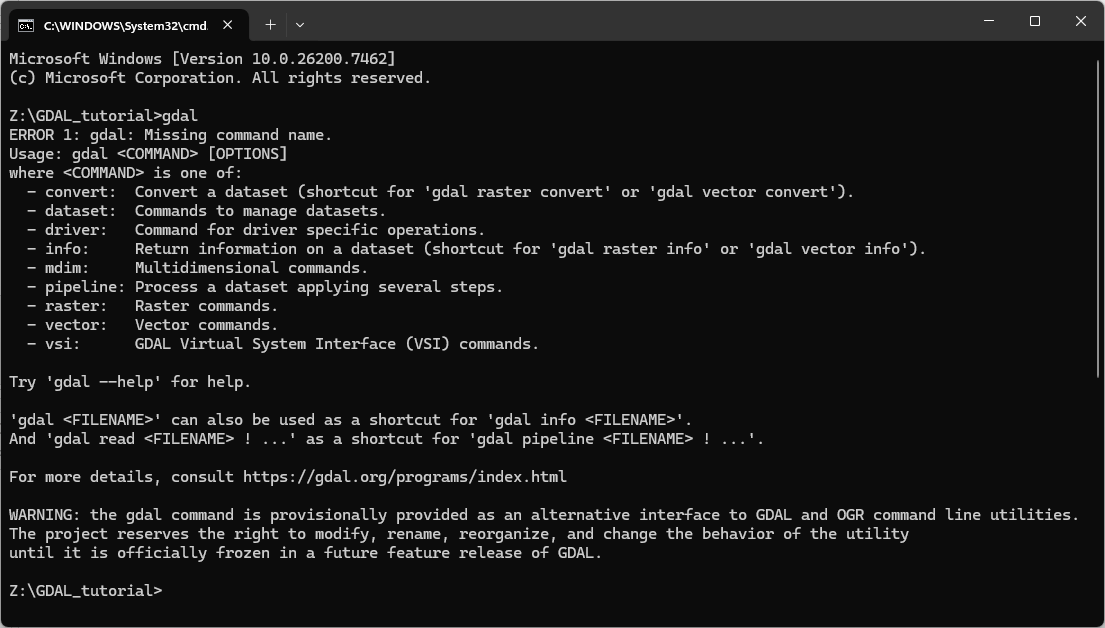
If the
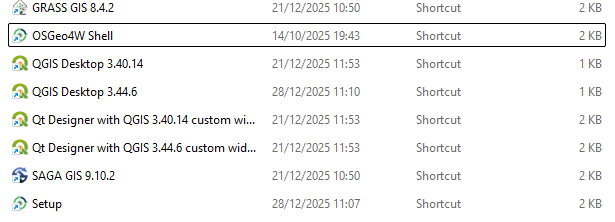
gdalcommand is not recognised, you probably have an outdated version of QGIS with its related OSGeo4W Shell. If you're sure that you're using a newer version, try to locate the shortcut to the OSGeo4W shell in the following way:
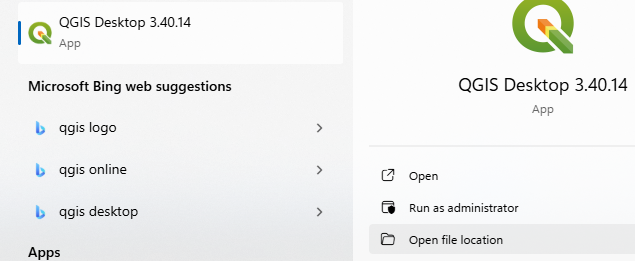
- Go to the Start menu.
- Type
QGISto search for QGIS Desktop 3.40 or newer- Click on Open file location
- Run OSGeo4W Shell from here.
You're now set to type gdal commands at the prompt. In the next chapters, you'll learn some of the most used commands.