
Tutorial: Create a field data collection app with QGIS and Mergin Maps
8. Create Map Themes
In Mergin Maps, you can use different map themes. This is ideal for switching between different background maps (e.g. cartography map and aerial photography). The map themes should be first set up in QGIS.
Let's start with making a map theme with the Google Satellite in the background.
1. Make sure the Survey layer is visible (box checked) in the Layers panel. In all map themes this layers needs to be checked.
2. Hide all other layers except the one we want to show as a backdrop. Here we check the box for Google Satellite.
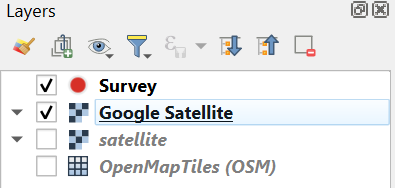
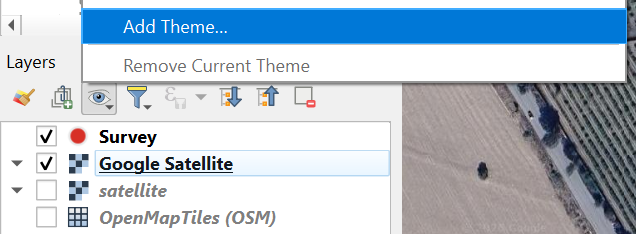
3. Click the Manage Map Themes  icon and choose Add Theme... from the context menu.
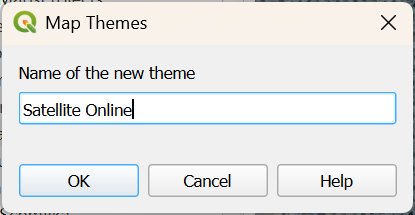
4. In the Map Themes popup call the the new theme Satellite Online and click OK.
5. Now hide (uncheck the box) for Google Satellite and check the box for satellite.
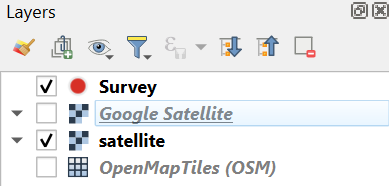
6. In the same way now create a Map Theme with the name Satellite Offline.
Now you can find both themes:
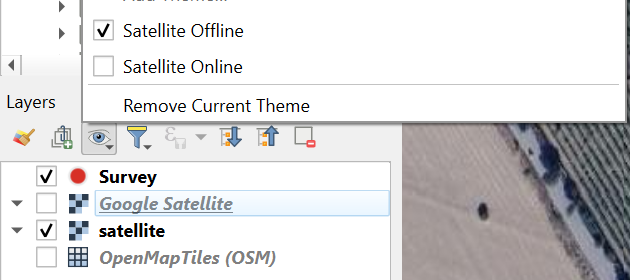
7. Switch between the two Map Themes and check the result.
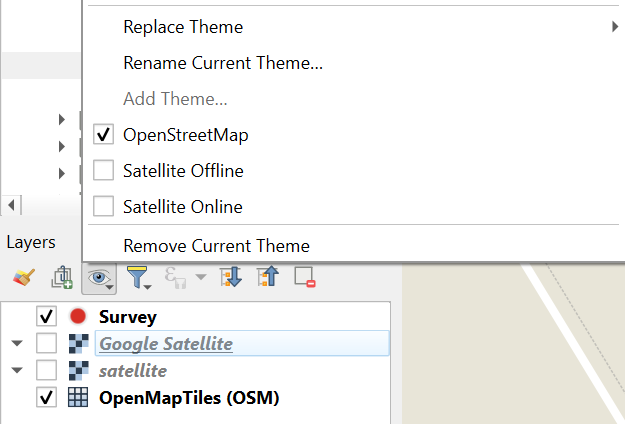
8. In the same way add the Map Themes with the OpenMapTiles (OSM) layer and name it OpenStreetMap.
In the end you'll have the following Map Themes:
In the next sections we'll do some final project settings.