Fire Risk Map
Learn how to create a Fire Risk Map using QGIS and remote rensing.
6. Download Your Own Data
6.2. Land Cover
With a land cover map we can see all the land types in our study area, like forests, built-up area, and agricultural land. This can provide us with more data than is possible to gather from a satellite image. To download a land cover map, we will use ESA World Cover.
Go to the website with this link: https://viewer.esa-worldcover.org/worldcover/?language=en&bbox=128.07272069321286,-3.9330011740705544,131.25679476439183,-2.3446455990049913&overlay=false&bgLayer=OSM&date=2025-11-21&layer=WORLDCOVER_2021_MAP
Download Data
Downloading land cover data is quite simple. Look up Seram Island and have the area of interest in your viewport. Make sure you have enough data, as we cut out what we don’t need later.
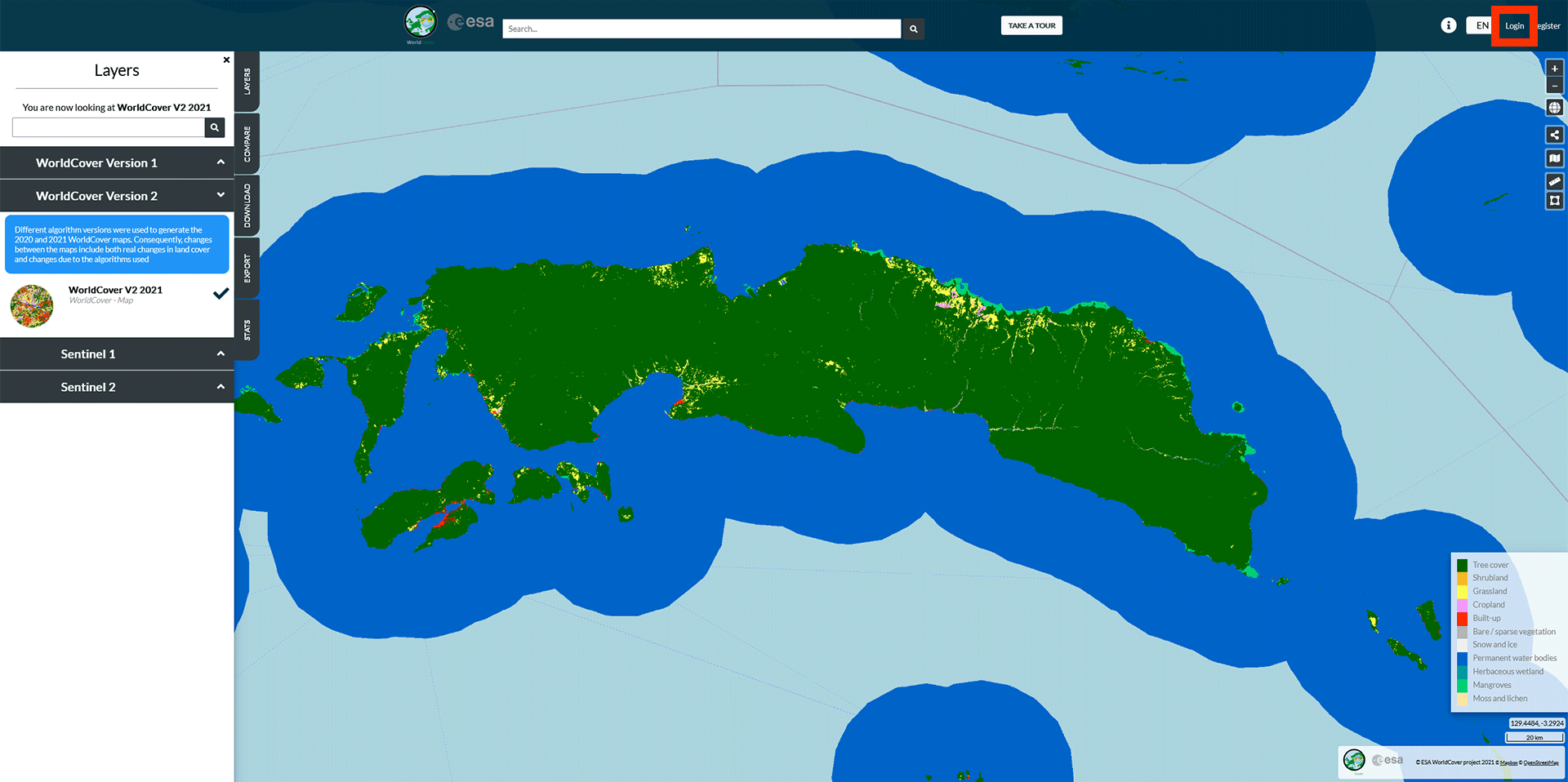
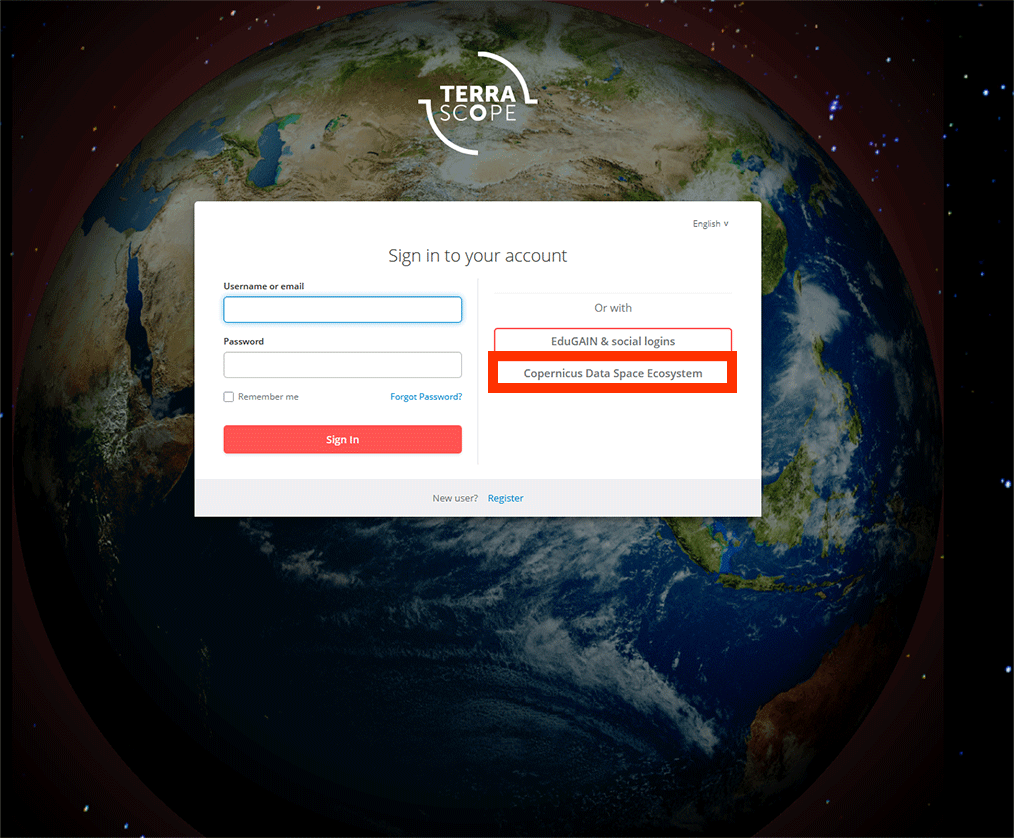
1. Before we can download our data, you need to log in. You can use your Copernicus account to log-in as well.
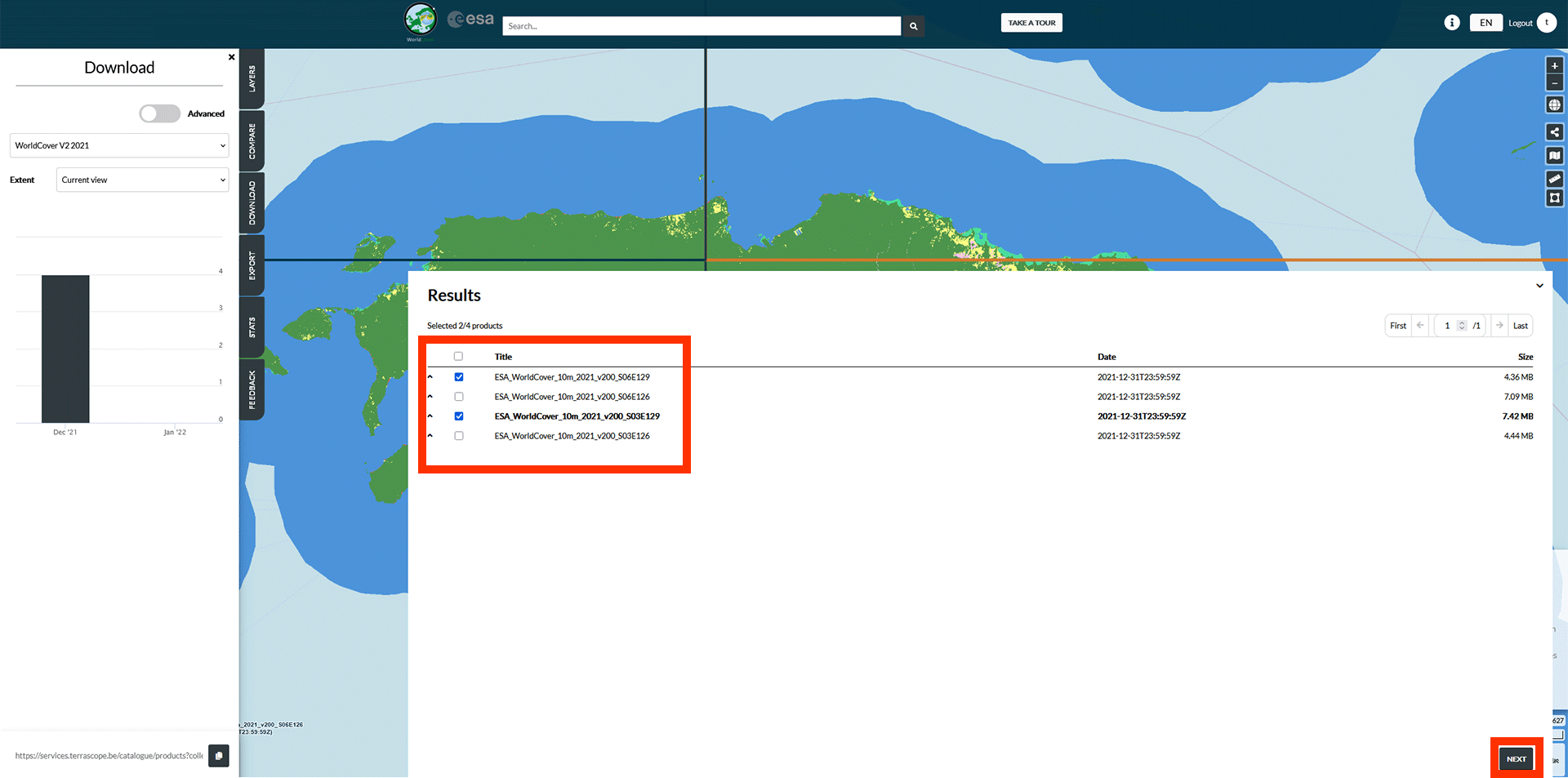
2. On the left, make sure you have WorldCover Version 2 selected. This is the most recent data available.
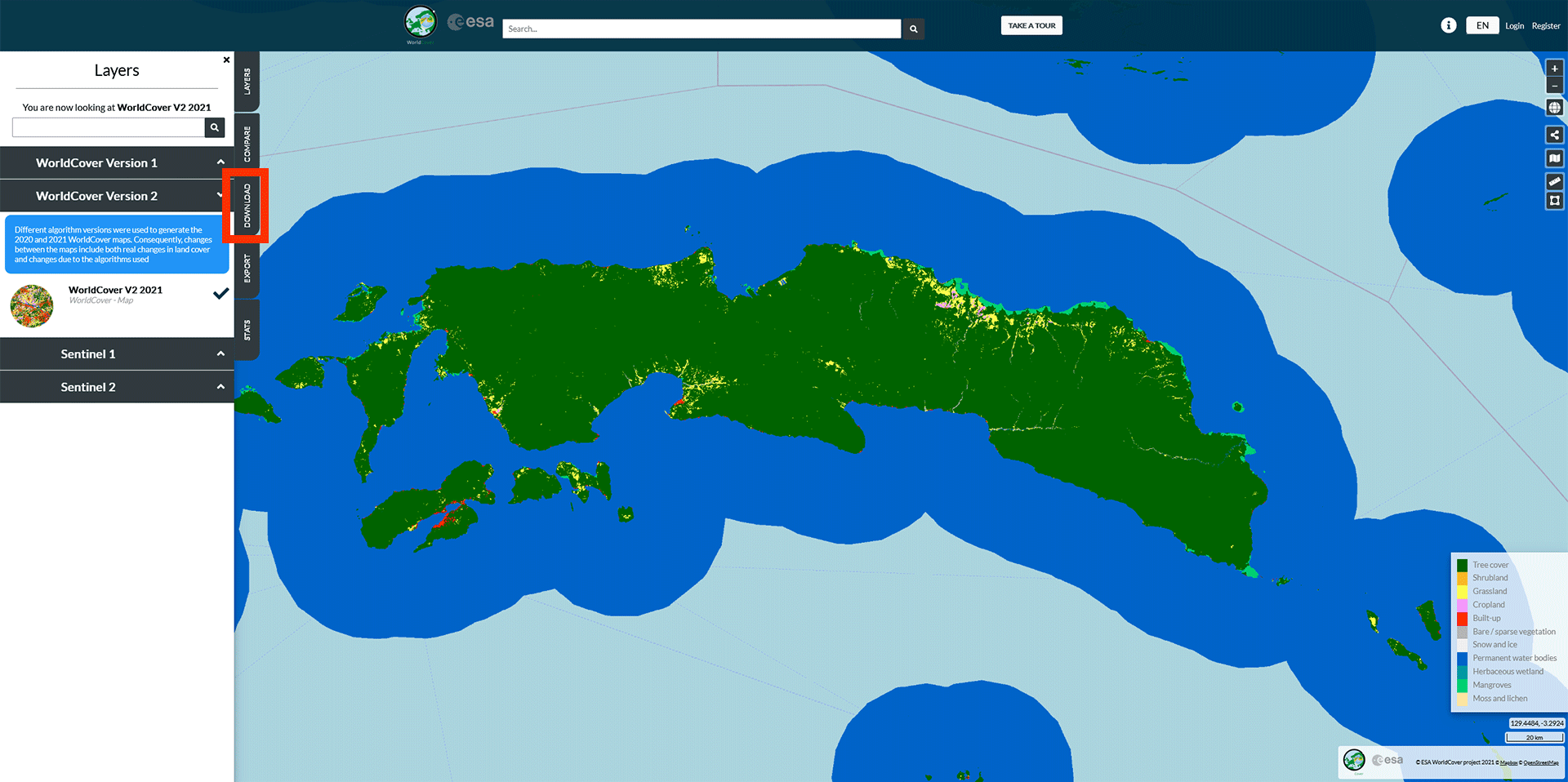
3. Click on the Download tab. You should see these two layers in the results if you have Seram Island in your viewport. Select ESA_WorldCover_10m_2021_v200_S06E129 and ESA_WorldCover_10m_2021_v200_S03E129 and press Next.
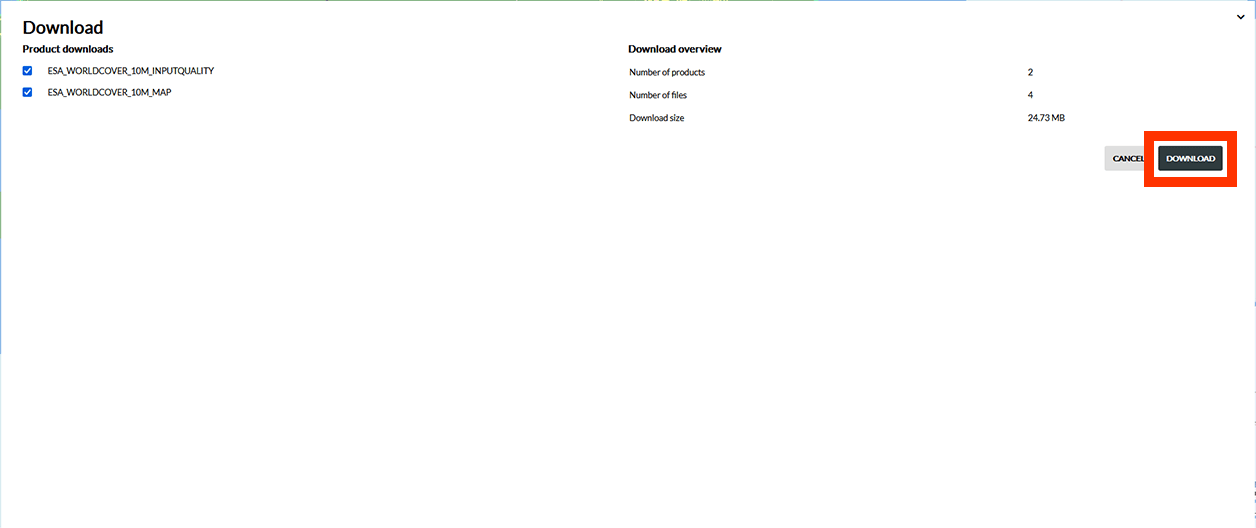
4. On the next page, press Download. The data will be downloaded into a ZIP-file. Extract them to an easy to find location.
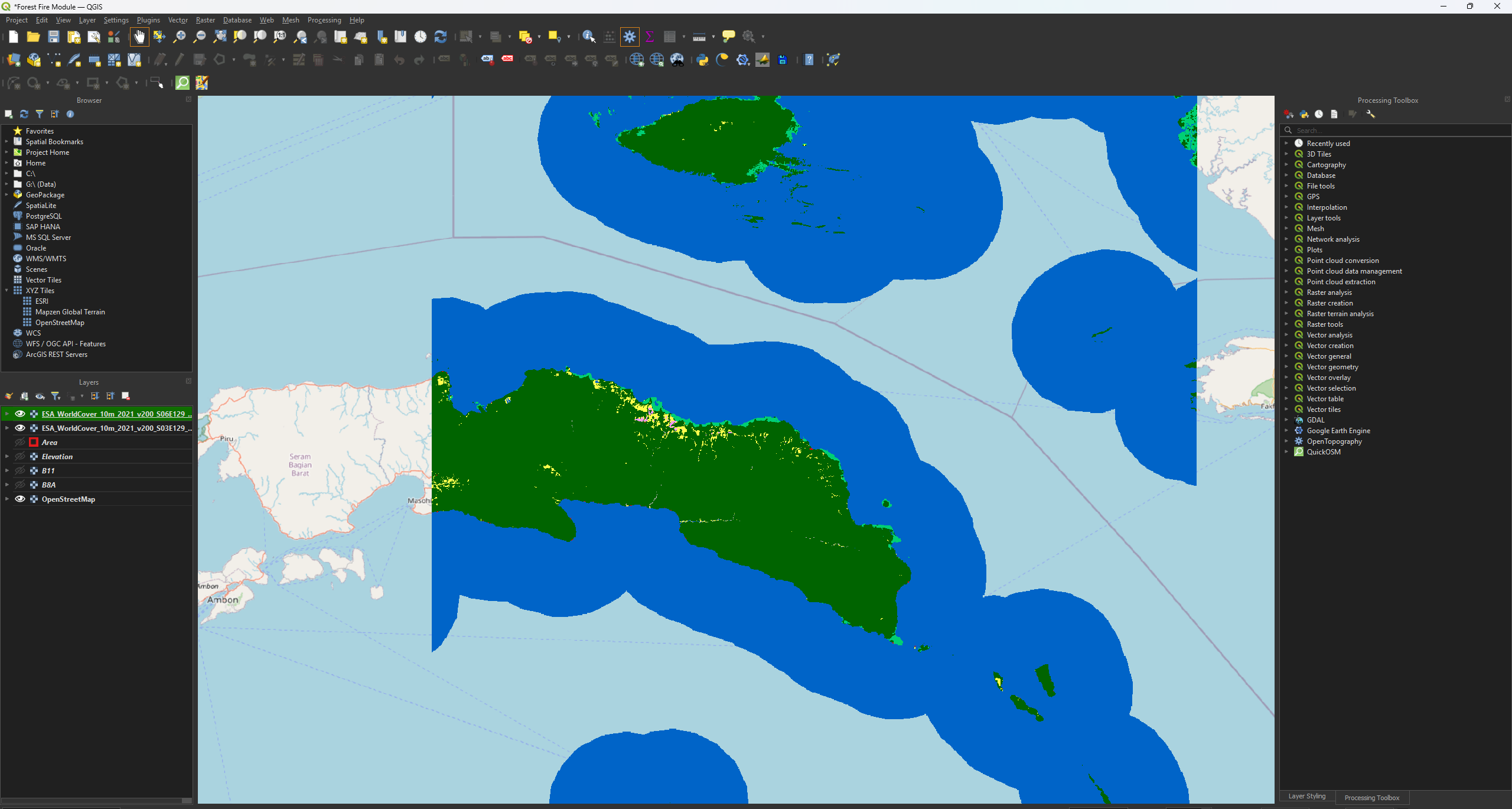
5. Open the folder and drag the ESA_WorldCover_10m_2021_v200_S03E129_Map.tif and ESA_WorldCover_10m_2021_v200_S06E129_Map.tif layers into QGIS (coloured images).
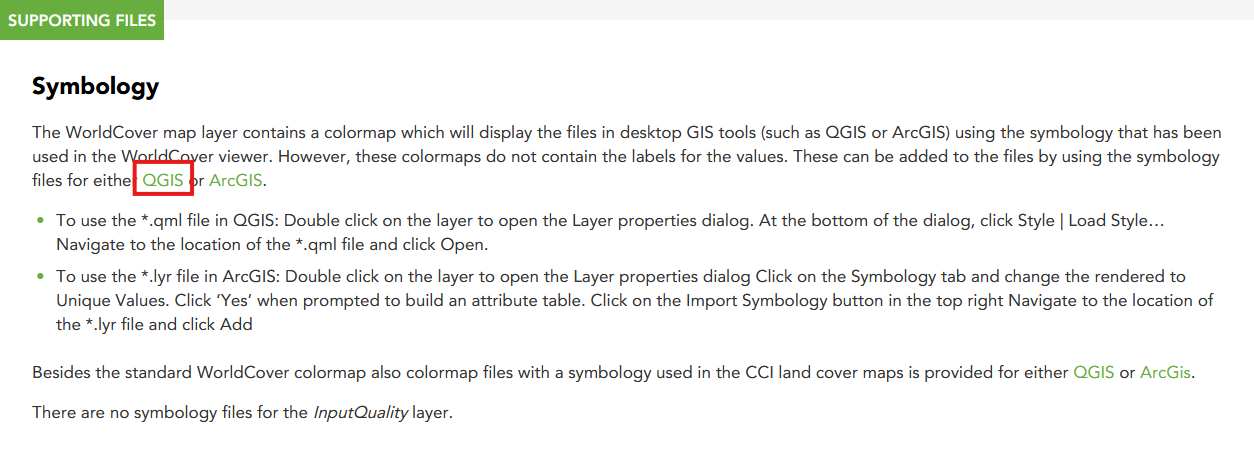
6. Finally, we need a QML-file to add the correct symbology later. You can find the QML-file if you click on the Information icon on the WorldCover website or by using this link: https://esa-worldcover.org/en/data-access. Scroll all the way down and click on the first QGIS link under Symbology