
Tutorial: Create a field data collection app with QGIS and Mergin Maps
6. Add offline background layers
In the previous section we've added an online background layer to our survey project. Sometimes we don't have internet in the field. For those cases we can create offline layers from the online layers and we can add other layers that we need. Note that the storage in the free plan of Mergin Maps is 100 MB, so you can't have too many detailed offline layers.
Let's create an offline layer of the Google Satellite layer.
1. Make sure that in the Layers panel only the Google Satellite layer is visible, zoomed in to your study area.
2. Go to the Processing Toolbox.
3. Go to Raster Tools | Generate XYZ tiles (MBTiles).
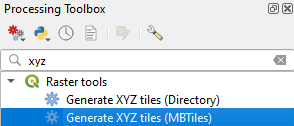
4. In the Generate XYZ Tiles (MBTiles) dialog choose the Map Canvas Extent as Extent.
5. Here we keep the Minimum zoom and Maximum zoom level at 17. You can give a range, but then also the file size will increase.
6. Save the result (satellite.mbtiles) to the same folder as your Mergin Maps project. Only then it will be later synchronized.
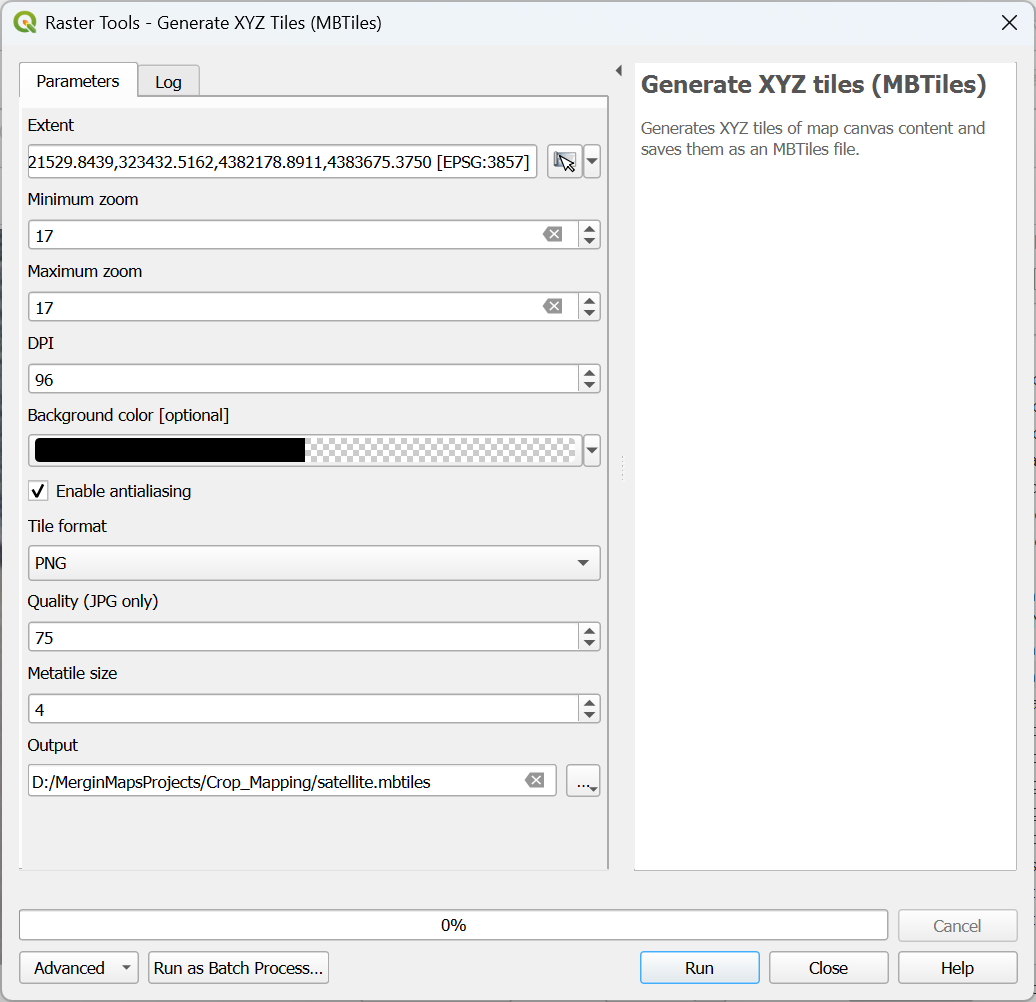
7. Click Run.
8. Click Close to close the dialog after the processing has completed.
9. In the Browser panel go to Project Home to see all the files in your project folder and drag the satellite.mbtiles layer to the map canvas. You might need to click refresh  to see the layer.
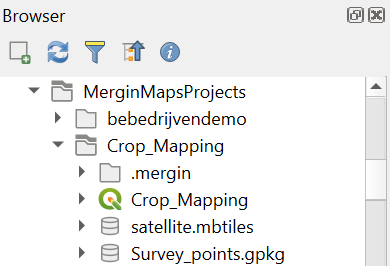
10. Check the result.
Of course we can also add any existing raster layers to our project, such as NDVI, WaPOR layers, etc.
Next, we'll setup the survey layer.