
Tutorial: Create a field data collection app with QGIS and Mergin Maps
12. Using the Mergin Maps app for field surveys
In this section we're going to use the Mergin Maps app on our mobile device for field data collection.
Make sure you see the project on the screen of your device:
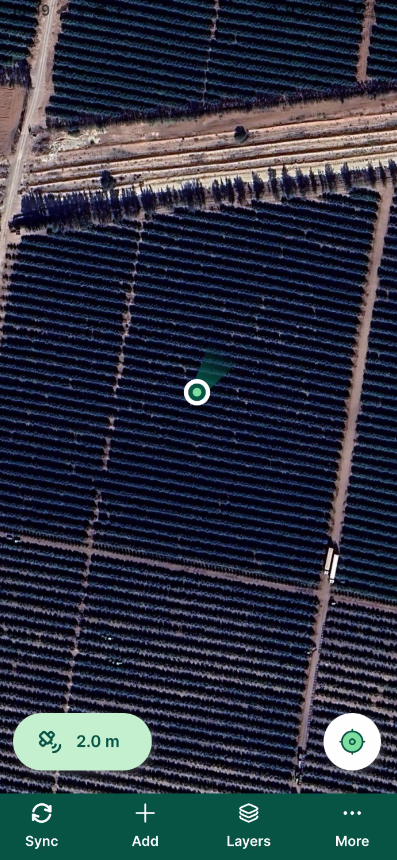
You can see the GPS accuracy. Make sure it's good enough for your purpose.
1. Tap the GPS accuracy value. This will give you the GPS reading.
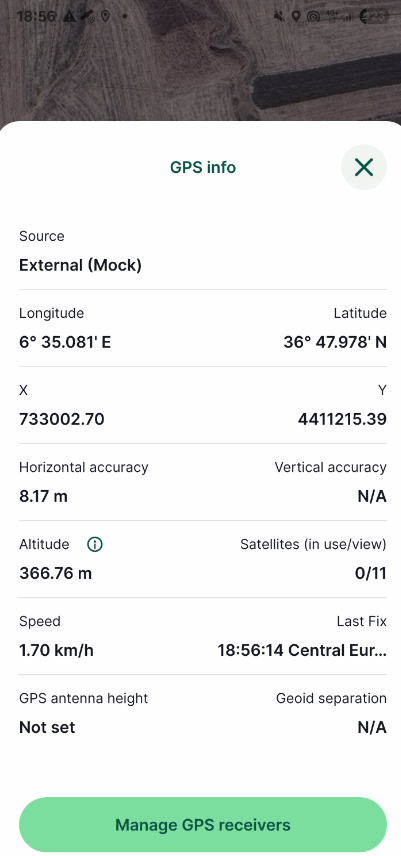
2. Go back to the project by tapping  .
.
3. Tap the GPS  icon to zoom in on your location.
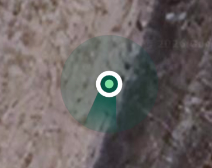
4. Use two fingers to zoom in further. The light green circle gives an indication of the position error, the darker green wedge shows the view direction.
5. Tap the  icon and choose Map themes.
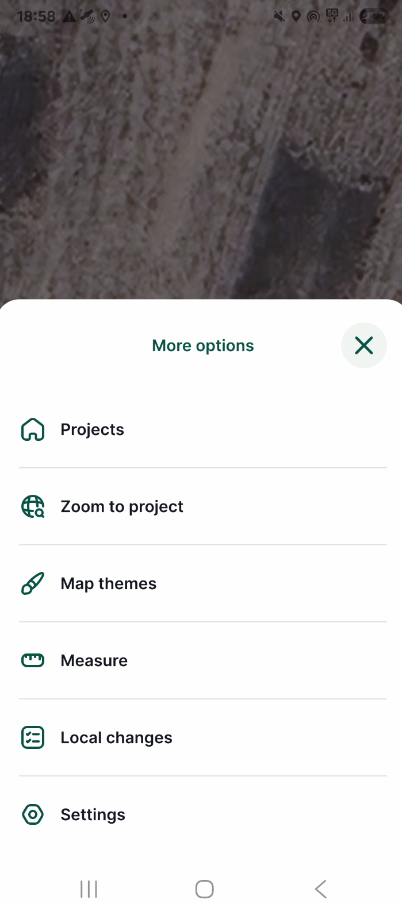
6. Try different Map Themes.
Let's take an observation point.
7. Tap Record  .
.
8. The GPS locator changes into a crosshair. You can move the crosshair with your fingers to the location that's representative for your observation. This is particularly useful if you don't have access to a parcel due to fences.
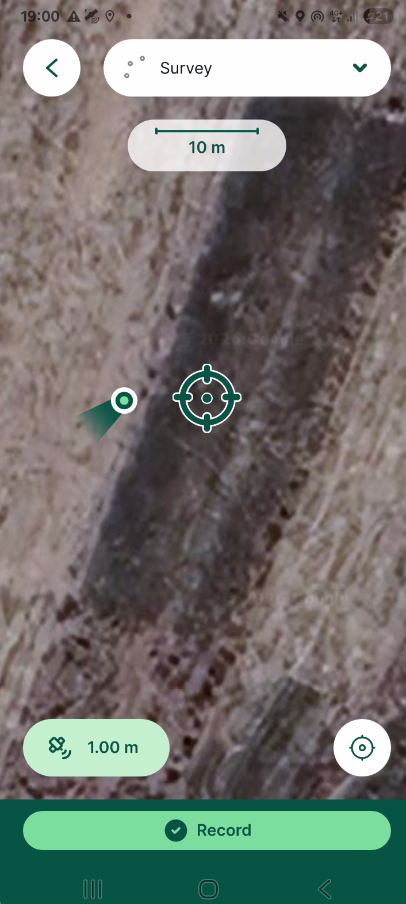
9. If you're okay with the location, tap Record.
10. Fill in the form.
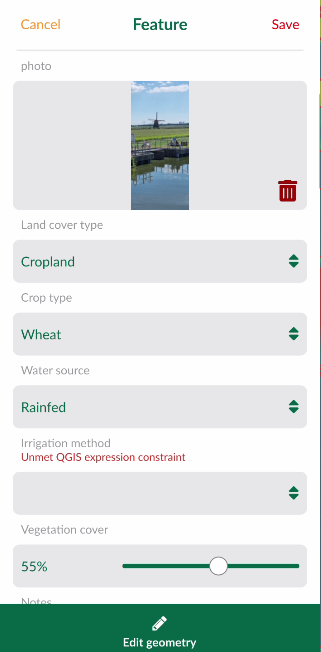
12. Tap  in the upper right of the screen to save the observation. Tap Edit geometry if you still want to move your point.
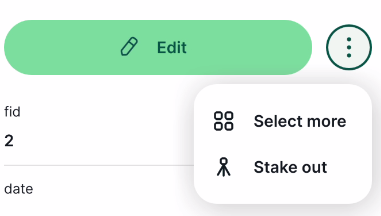
The point is now put on the map with the style from the project. If you tap it you can also see the preview. If you want to edit the point, tap Edit. If you tap  you can select multiple points to edit them at the same time or Stake out to help you navigate to the point.
14. Tap  to synchronise your changes with the Mergin Maps cloud.
Now we'll go back to QGIS to check our project.