
Tutorial: Remote Sensing Image Classification with QGIS
5. Using the Semi-Automatic Classification Plugin
5.9. Classifiy the Entire Image
Before we'll classify the entire image, we'll first increase the number of trees.
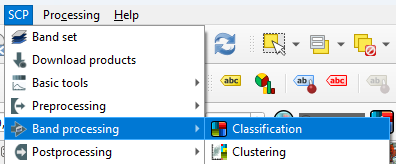
- In the main menu, go back to SCP | Band processing | Classifcation.
- Set the number of trees to 300.
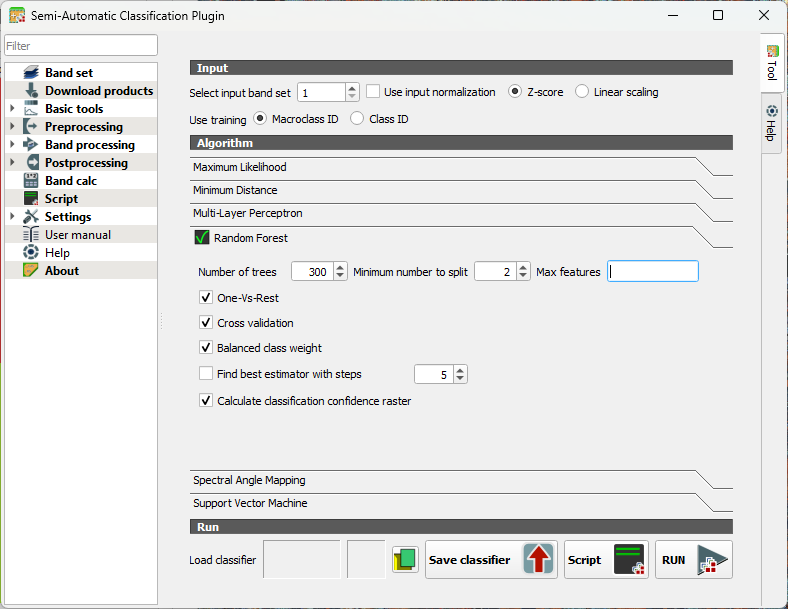
- Click RUN.
- Browse to the location where you want to save the output GeoTIFF and save it as cropmap.tif.
This will take a while (2 hours on my pc).
This video shows an overview of the Random Forest Classification in SCP:
In the next section we'll evaluate the result.