Tutorial: Stream and Catchment Delineation
8. Delineate Streams
8.4. Styling the channels
Now we can style the channels vector layer to get a better understanding of the results. We will apply a styling in such a way that the lines get thicker with higher Strahler orders.
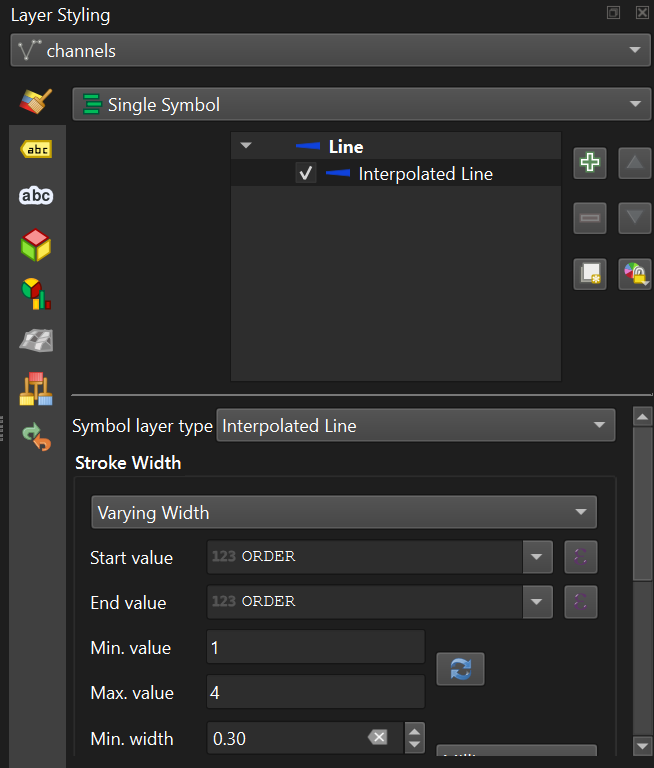
2. Open the Layer Styling panel and set the target layer to channels.
3. Keep the Single Symbol renderer, but change the Symbol layer type from Simple Line to Interpolated Line.
4. Change the Stroke Width to Varying Width. Set the Start value and End value to the ORDER field. Click the refresh  button to get the correct Min. value and Max. value. Change the Min. width to 0.30 Points and the Max. width to 1.00 Points.
9. Under Color, keep the Single Color but change it to blue with an RGB value of 15 |66 | 220.
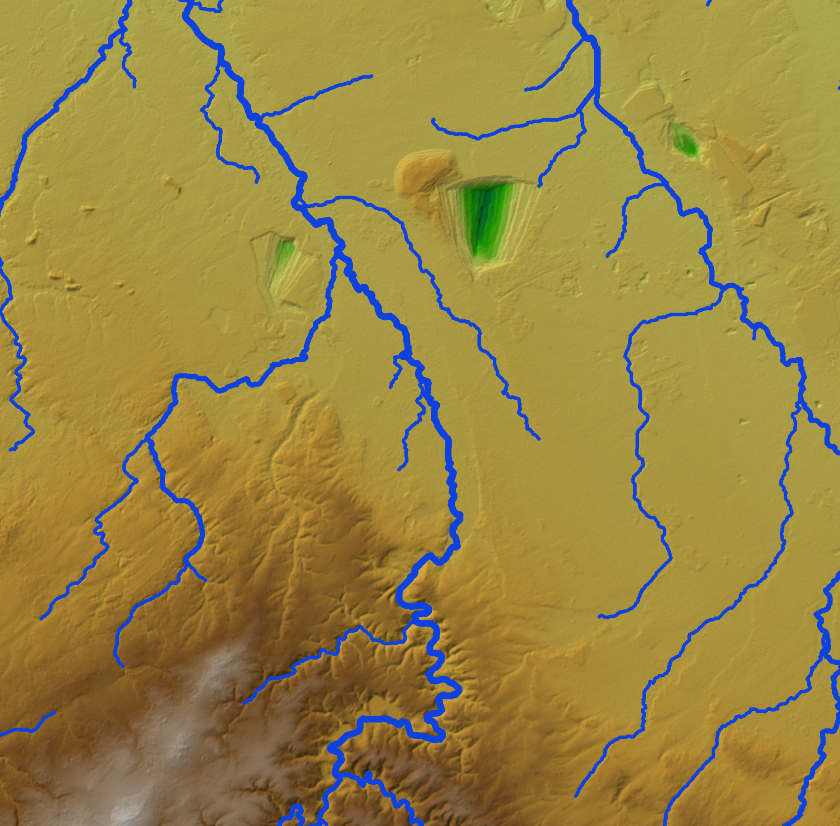
Your map should now resemble the figure below, showing the streams identified as having higher Strahler Orders are the main channels and the smaller ordered streams are tributaries.