
مادة تدريبية: تجهيز بيانات من خرائط ورقية
10. Styling the Mountains, Rivers, and Lakes
10.4. Style Lakes
Next you will style the lakes. You will use a shapeburst fill which will allow you to color the lakes from light blue to dark blue.
1. Set the target layer in the Layer Styling Panel to Lakes and switch from the Labeling tab back to the Styling tab.
2. Select the Simple fill styling component. Change the Symbol layer type to Shapeburst fill. Keep the default Gradient colors setting of Two color. Set the first color to an RGB value of 185|239|255.
Set the second color to an RGB value of 31|133|180.
3. Set the Shading style to Set distance with a value of 6. Increase the Blur strength to 12.
Finally you will add a simple line to represent the coastline of each lake.
4. Click the Add symbol layer  button. Change the new Simple fill renderer to a Symbol layer type of Outline: simple line with Color of
 31|133|180.
5. Label the lakes with the the Name. Set the label Color and RGB value of 225|255|255 (white), the Font to Calibri, the Size to 10 and the Style to bold italic.
6. Switch to the Label placement  tab and change the
Mode to Horizontal. Then switch to the label Formatting
tab and change the
Mode to Horizontal. Then switch to the label Formatting  tab
and enter a space as the Wrap on character. Set the Alignment to Center.
tab
and enter a space as the Wrap on character. Set the Alignment to Center.
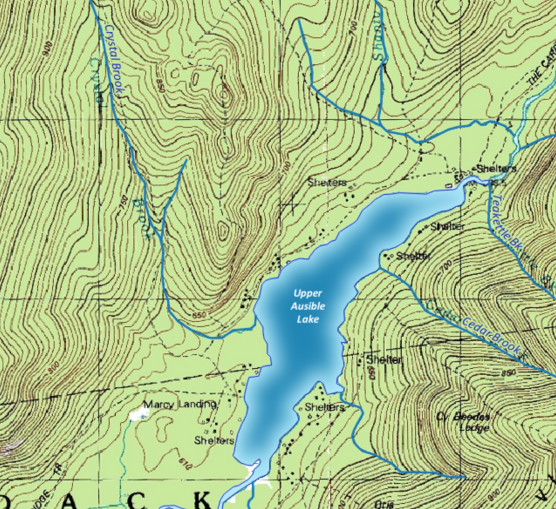
Your lakes should look like:
Watch this video to check the steps in this section: