
Tutorial: Remote Sensing Image Classification with QGIS
4. Segment Parcels with the AI Segmentation Plugin
4.3. Split Training and Test Areas
To be able to later validate the result of the classification with an error matrix, it's important to not use all polygons in the classification. Therefore, we split the ground truth data in training and test polygons. A typical split is to use 70% for training and 30% for testing. In our case we'll select 70% of the polygons of each class.
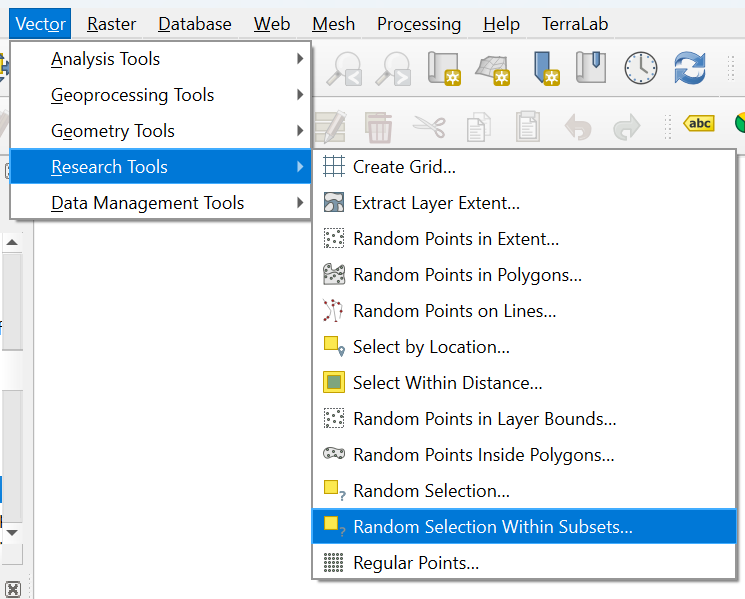
- In the main menu, go to Vector | Research Tools | Random Selection Within Subsets....
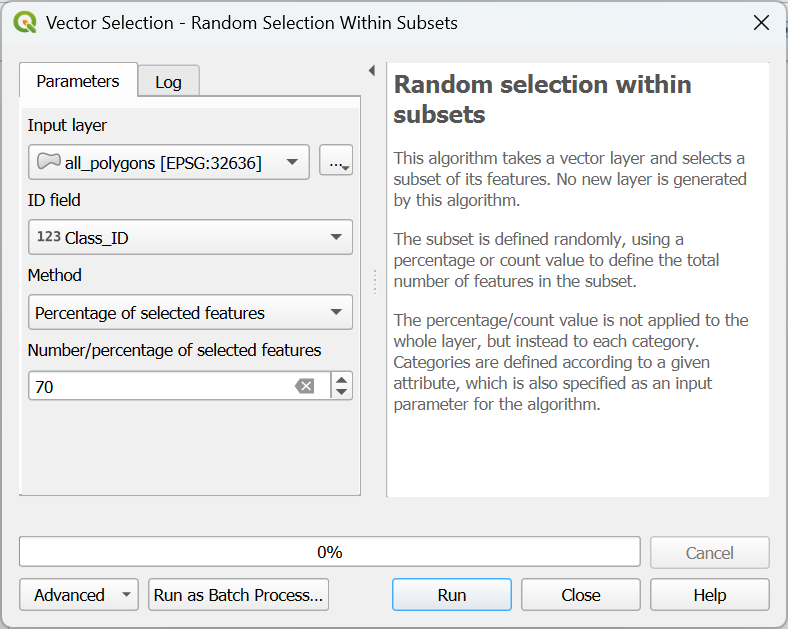
- In the Vector Selection dialog, make sure that all_polygons is chosen as the Input layer. For ID field choose Class_ID. Use Percentage of selected features as Method and set the percentage to 70%.
- Click Run to apply the selection. Click Close to close the dialog.
The selected polygons in the all_polygons layer are now highlighted in yellow.
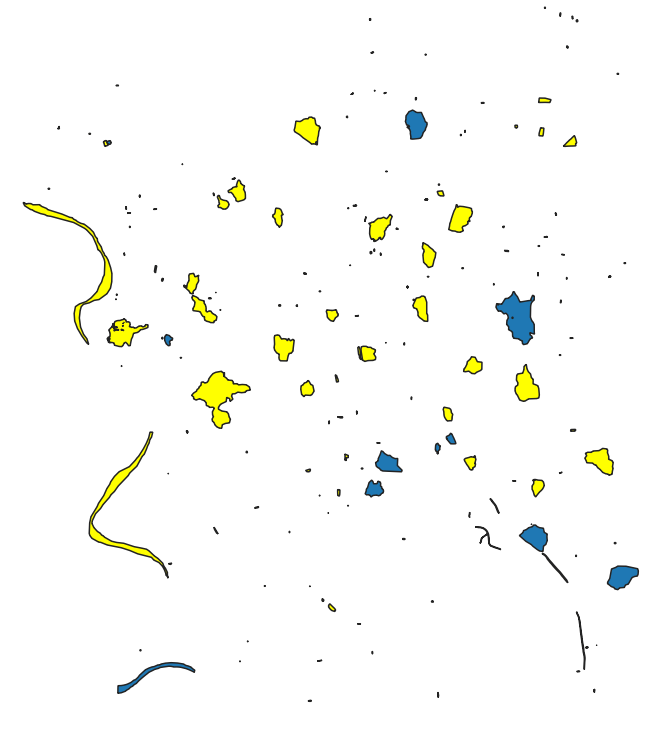
Let's save these polygons in a new layer called training_areas.
4. In the Layers panel, click right on all_polygons and choose Export | Save Selected Features As... from the context menu.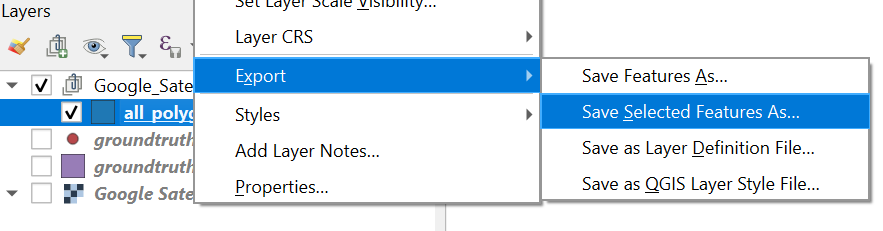
Later, when we use SCP to import training and test areas, we can only load single layer GeoPackages. Therefore, here we'll store the training and test layer in their own GeoPackage, instead of adding them to the existing GeoPackage.
5. In the dialog, use  to browse to the folder where you want to store the layer and use
 training_areas for both the File name as the Layer name.
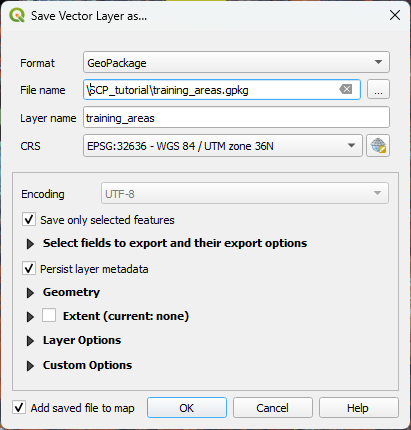
6. Keep the rest as default and click OK to export the layer.
Now we need to export the remaining 30% test areas.
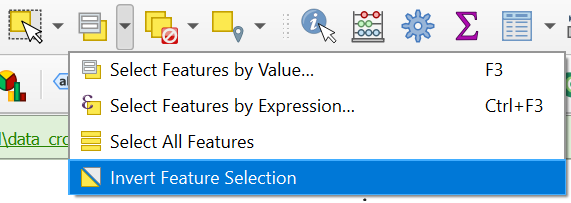
7. Make sure that the all_polygons layer is selected in the Layers panel. In the toolbar, click on the arrow at the right of  and choose Invert Feature Selection.
8. Export the selection in the same way as in steps 4 - 6, but name the output GeoPackage and layer test_areas.
Now we have our ground truth dataset ready and can proceed with the remote sensing workflow.