
Preprocessing a DEM and calculate flow direction
3. Create a Subset of the DEM
To reduce the calculation time of the algorithms, we will subset (or clip) the raster layer to the bounding_box polygon.
Note that in a real case you don't have a bounding box, but you need to use your expert hydrological knowledge to estimate what the extent of your catchment is. In that case you can choose Raster | Extraction | Clip Raster by Extent from the main menu. Then you can drag a box in the Map Canvas and use that for clipping. While using that, make sure your on-the-fly reprojection is similar to the layer that you want to clip, because the map canvas coordinates are used by the algorithm.
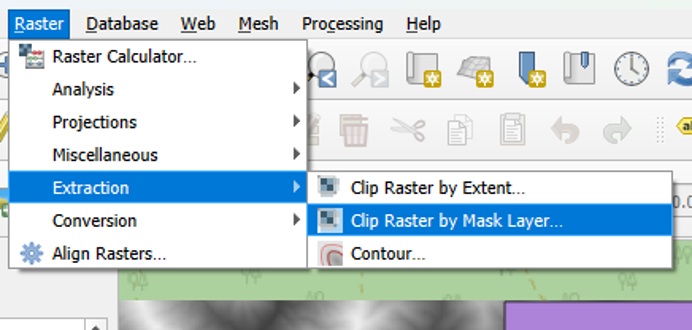
1. From the main menu select Raster | Extraction | Clip Raster by Mask Layer.
2. In the Clip Raster by Mask Layer dialog, choose Gold_Crk_5m_2014 for the Input layer. For Mask Layer, choose bounding_box. Check the box to Keep resolution of input raster and keep the defaults for the other options. Choose dem_subset for the Clipped (mask) output and click Run. Click Close when done.
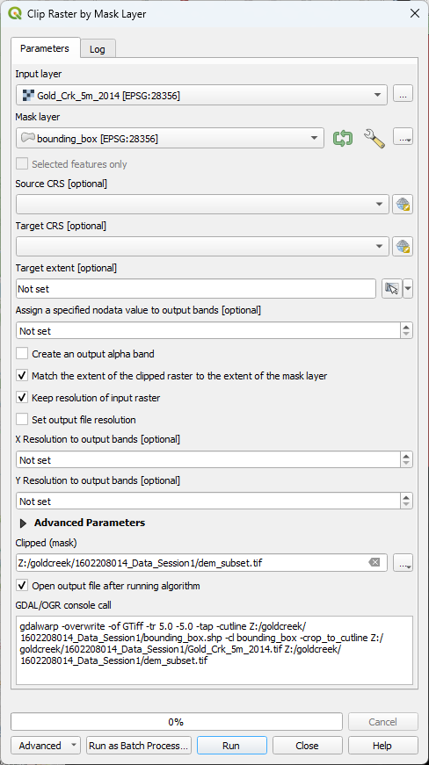
Always use the Browse button
in dialogs to choose the output file name. Temporary layers can cause errors and you’ll lose the layer after a crash. It’s also a good way to trace back steps after you made a mistake.
3. Now you can remove Gold_Crk_5m_2014 from the Layers panel: right-click on the layer name and select Remove Layer... from the context menu.
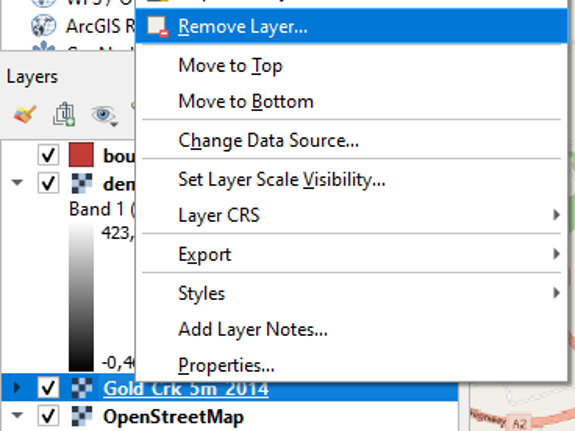
We remove layers that we don't use in the next steps to avoid that we use the wrong layer in our calculations. Removing layers from the Layers panel does not mean that the layer is deleted. In the Browser panel you can still find the layer in the folder.
Next, we'll style the DEM and generate elevation contours.