Preprocessing a DEM and calculate flow direction
5. Fill Sinks and Calculate Flow Directions
5.3. Visualize Flow Direction in 3D
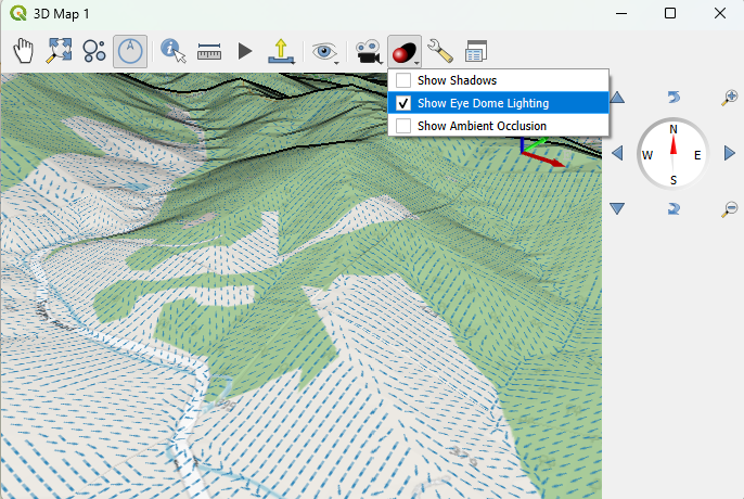
We can also visualize the flow direction using the QGIS 3D Map View.
The 3D Map View will show everything from your 2D map canvas in 3D.
Here we would like to see the arrows over the OpenStreetMap layer.
1. Make sure that in the map canvas you show the arrows above the OpenStreetMap layer. You can hide the other layers.
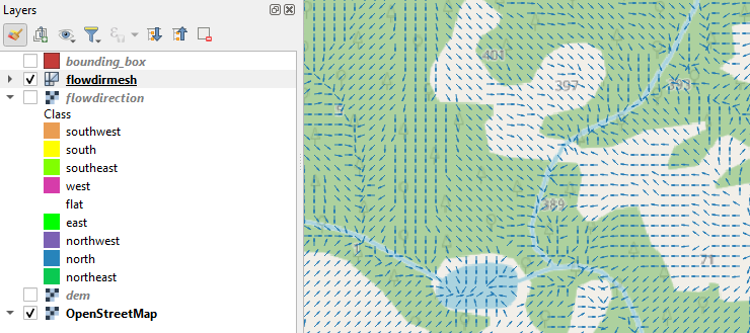
2. In the main menu, choose View | 3D Map Views | New 3D Map View.

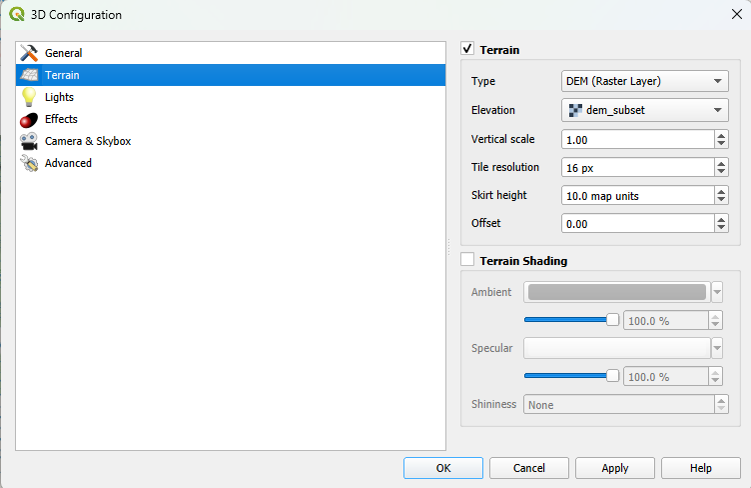
3. In the 3D Map view, click the Configure  button.
4. In the 3D Configuration dialog, stay in the Terrain tab and change the Type to DEM (Raster Layer) and choose dem_subset as Elevation. Click OK to apply the settings and return to the 3D Map view.
The 3D view will now start rendering.
Try to navigate the scene with the different mouse buttons and the compass. You can change the Vertical scale, Tile resolution and Skirt height in the 3D Configuration to improve the visualization. You can also Show Eye Dome Lighting.