
مادة تدريبية: تجهيز بيانات من خرائط ورقية
8. تأكيد صحة الخريطة المرجعة جغرافياً
يمكنك التحقق من النتيجة عن طريق فحص الإحداثيات عند عُقد الشبكة التي استخدمتها كنقاط تحكم أرضية (GCPs).

يظهر نظام الإحداثيات المرجعي للخريطة (Map CRS) الإحداثيات في الإسقاط الخاص بالمشروع (أي EPSG:26718)، بينما يوضح الحقل الثاني الإحداثيات في نظام الإحداثيات الجغرافي (أي EPSG:4326)، مع إحداثيات بالدرجات العشرية لخط الطول ودائرة العرض.
2. إقرأ الإحداثيات من جانب الخريطة وتحقق إذا كانت تتطابق مع هذه الإحداثيات، ثم كرر العملية لعقد نقاط التحكم الأرضية (GCPs).
وثمة طريقة أخرى للتحقق من النتيجة باستخدام خريطة ويب كخلفية (backdrop)؛ حيث توفر إضافة QuickMapServices وصولاً سهلاً إلى العديد من خرائط الويب مثل Google Satellite و OpenStreetMap.
تعد الإضافات (Plugins) ملحقات من أطراف خارجية لبرنامج QGIS، ويمكن تثبيتها من خلال مدير الإضافات (Plugins manager)، علماً بأنك ستحتاج إلى اتصال بالإنترنت للاتصال بمستودع الإضافات.
3. اختر من القائمة الرئيسية: إضافات (Plugins) | إدارة وتثبيت الإضافات (Manage and Install Plugins...).

4. Search for QuickMapServices.
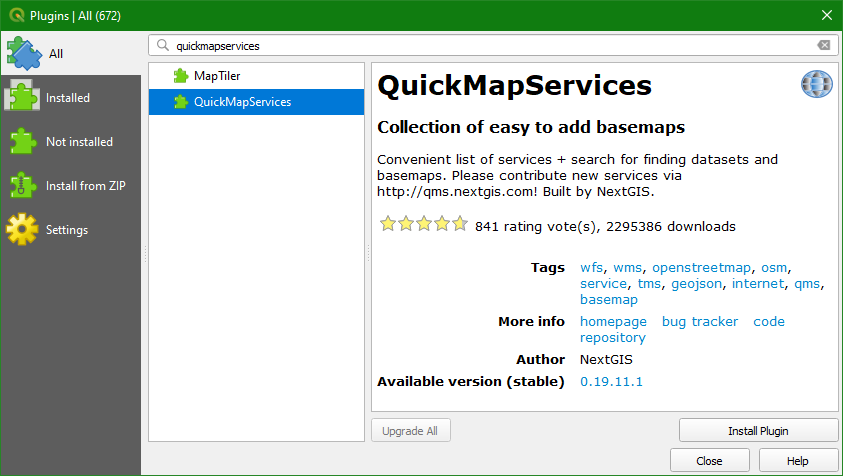
5. انقر "تثبيت الإضافة" (Install Plugin)، ثم انقر "إغلاق" (Close) بعد انتهاء التثبيت.
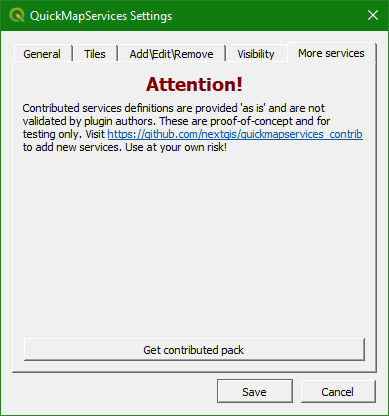
6. للوصول إلى المزيد من الموارد عبر الإنترنت، اختر ويب (Web) | إضافة QuickMapServices | الإعدادات (Settings) من القائمة الرئيسية؛ ثم اختر علامة تبويب "المزيد من الخدمات" (More services) وانقر فوق "الحصول على حزمة المساهمات" (Get contributed pack). انقر فوق موافق (OK) في الرسالة المنبثقة ثم حفظ (Save) في نافذة الحوار عند اكتمال تثبيت حزمة المساهمات.
7. انتقل إلى القائمة الرئيسية واختر ويب (Web) | إضافة QuickMapServices وحدد Google | Google Terrain ثم OSM | OSM Standard، ثم قارن الخريطة المرجعية جغرافياً مع Google Terrain وOpenStreetMap.
و للمساعدة في هذه المقارنة، ستستخدم وضع المزج (Blending Mode)؛ تحدد أوضاع المزج كيف تتفاعل طبقتين بصرياً، وعند تطبيق وضع المزج على طبقة ما، فسيتم دمجها مع الطبقة الموجودة أسفلها.
8. افتح لوحة تنسيق الطبقات (Layer Styling) بالنقر فوق  ، واضبط الطبقة المستهدفة على
 Mount_Marcy_New_York_USGS_topo_map_1979_modified.
9. في اللوحة، اختر وضع المزج (Blending mode) "ضرب" (Multiply).
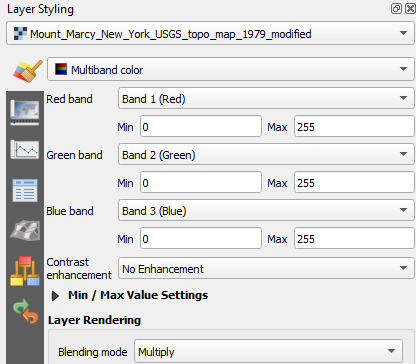
تسمح أوضاع المزج بعرض أكثر أناقة بين طبقات نظم المعلومات الجغرافية (GIS)، ويمكن أن تكون أكثر فعالية بكثير من مجرد تعديل شفافية الطبقة؛ حيث تسمح أوضاع المزج بتأثيرات تظل فيها الكثافة الكاملة للطبقة الأساسية مرئية من خلال الطبقة التي تعلوها، ويتوفر ثلاثة عشر وضعاً للمزج.
يمكن العثور على نظرة عامة وافية في هذه المدونة التي كتبتها هيلين ماكنزي.
10. بعد مقارنة الخريطة المرجعية جغرافياً مع الطبقات المتصلة بالإنترنت، قم بتغيير مزج Mount_Marcy_New_York_USGS_topo_map_1979_modified للوضع العادي. سنستخدم هذه الطبقة في الأقسام القادمة كخلفية لرقمنة المتجهات (digitize vectors)، ويمكنك إلغاء تحديد طبقتي Google Terrain وOSM Standard.
هذا وقت مناسب لحفظ مشروع QGIS الخاص بك (ملف .qgz).
11. من القائمة الرئيسية، اختر مشروع (Project) | حفظ باسم (Save as...) واحفظه باسم Exercise_1.qgz في نفس المجلد الذي قمت بتخزين البيانات فيه.
يحتوي ملف المشروع على مراجع لجميع الطبقات (وليس البيانات نفسها)، والتنسيقات، والإسقاطات، والمدى (extent)، ومستوى التكبير في لوحة الخريطة؛ لذا قم بحفظ مشروعك بانتظام.
شاهد هذا الفيديو للتحقق من الخطوات في هذا الفصل: