
درس تعليمي: التحليل المكاني باستخدام جبر الخرائط
8. Report the results
8.2. Sample Raster Values
The point vector layer wells now only contains the field Accessible. It is however, more informative to also include other data in the attribute table. With the Point sampling tool plugin we can sample the raster layers in this project
and add that information to the point attribute table.
1. Install the Point sampling tool plugin.
2. In the Layers panel only check the boxes before the layers you want to sample and uncheck the others. Choose the following
layers: dtm, welldepth, gwlevel, notdeep, ind300m, roads150m, and houses150m.
3. Click the Point sampling tool button  .
.
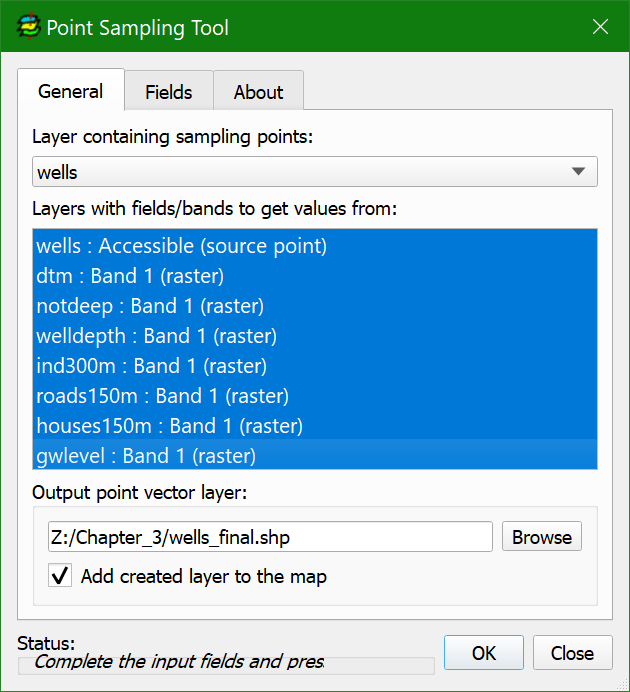
4. In the General tab of the Point Sampling Tool dialog choose wells as the layer containing sampling points,
select all Layers with fields/bands to get values from and save the Output point vector layer to wells_final.shp.
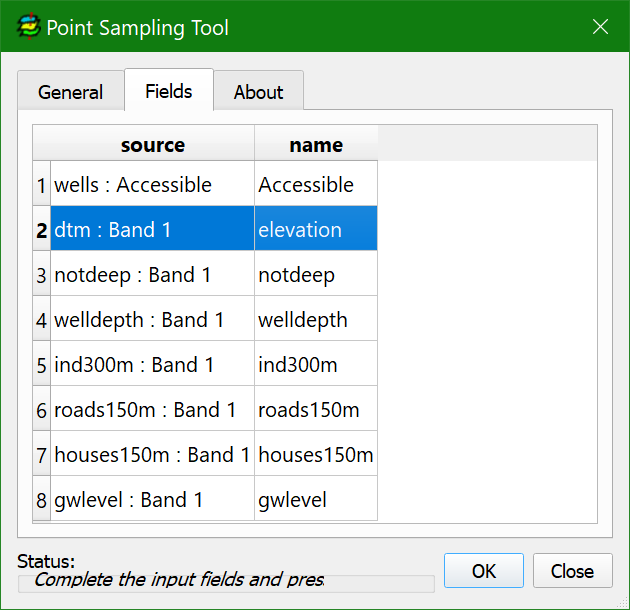
5. Click the Fields tab.
6. Edit the name of the attribute that will be given to the output field if needed.
7. Click OK and
Close.
8. Open the attribute table of wells_final and check the result.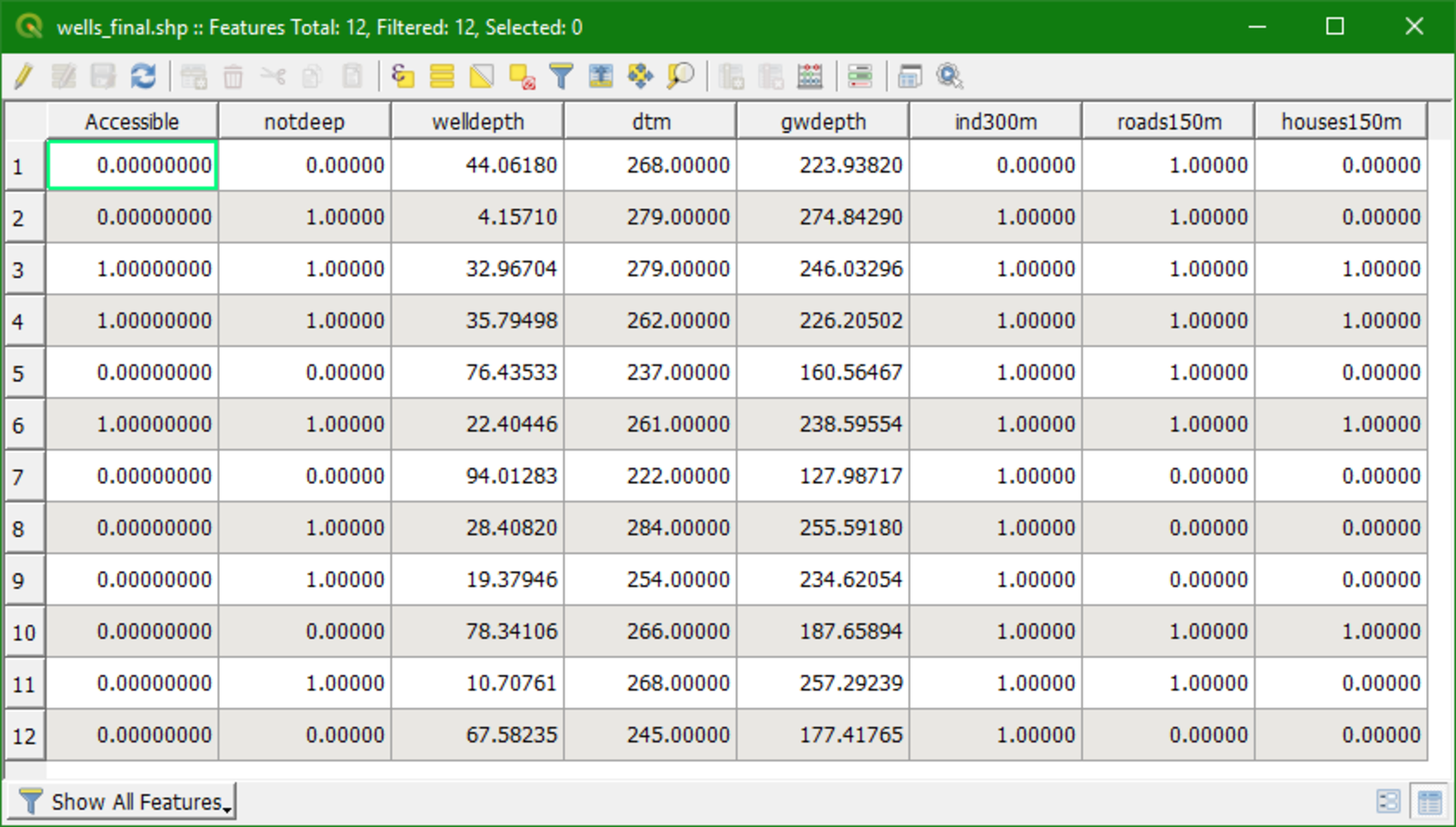
Watch this video to check the steps of this section: